Everything a sender, a reviewer, or a developer needs to know — from installing the widget to handing structured feedback to an AI coding agent.
01
What is TellUs?
TellUs is a visual feedback widget for websites. A non-technical reviewer visits a page, clicks on an element, types a note, and saves — all without leaving the browser tab. Feedback is captured as structured, agent-consumable data and surfaces immediately in the TellUs admin dashboard.
The widget is invisible to normal visitors. It activates only when someone opens a special activation link containing a reviewer's email. Close the tab or visit ?tellus=off, and the widget vanishes without a trace.
Who it's for
Senders — developers and project leads who install the widget and share activation links with clients.
Reviewers — non-technical clients or stakeholders who leave feedback directly on the live site. No login, no install, no training required.
Developers / AI agents — the structured data output (selectors, computed styles, replacement text) is designed to be acted on directly, without a human intermediary translating screenshots into code changes.
TellUs works on any platform: WordPress, Wix, Squarespace, Webflow, static HTML, Next.js, Shopify, or a local dev server.
Click + Add Site in the header. Enter the domain (hostname only, e.g. a4efloral.com — no https://) and a friendly display name. The domain is used for the origin allow-list — it must match exactly.
Install the widget
Paste this single script tag into the site's HTML, just before </body>. No API key. No configuration.
Self-hosted instance? Add data-tellus-api="https://your-host/api" to point the widget at your server. That's the only attribute it accepts.
Platform
Where to paste
WordPress
Appearance › Theme Editor › footer.php, or a Header/Footer Scripts plugin
GeneratePress
Elements › Hook: wp_footer
Wix / Squarespace / Webflow
Custom code section in site settings (footer)
Static HTML
Paste directly before </body>
Next.js / React
<Script> component in _document.tsx or layout.tsx, strategy="afterInteractive"
Send the reviewer an activation link
Append ?tellus= and the reviewer's email to any page URL on the registered site:
activation link pattern
https://a4efloral.com?tellus=reviewer@email.com
When the reviewer opens that link, the widget activates immediately. A 24-hour session cookie keeps it active as they navigate to other pages on the same site — no repeated activation needed.
Review feedback in the dashboard
Return to the dashboard, select the site from the dropdown, and you'll see all sessions and notes as they come in. No refresh needed — notes appear live.
03
The reviewer's experience
The reviewer opens your activation link and a small circle icon appears in the bottom-right corner of the page. Everything else looks exactly like the normal site.
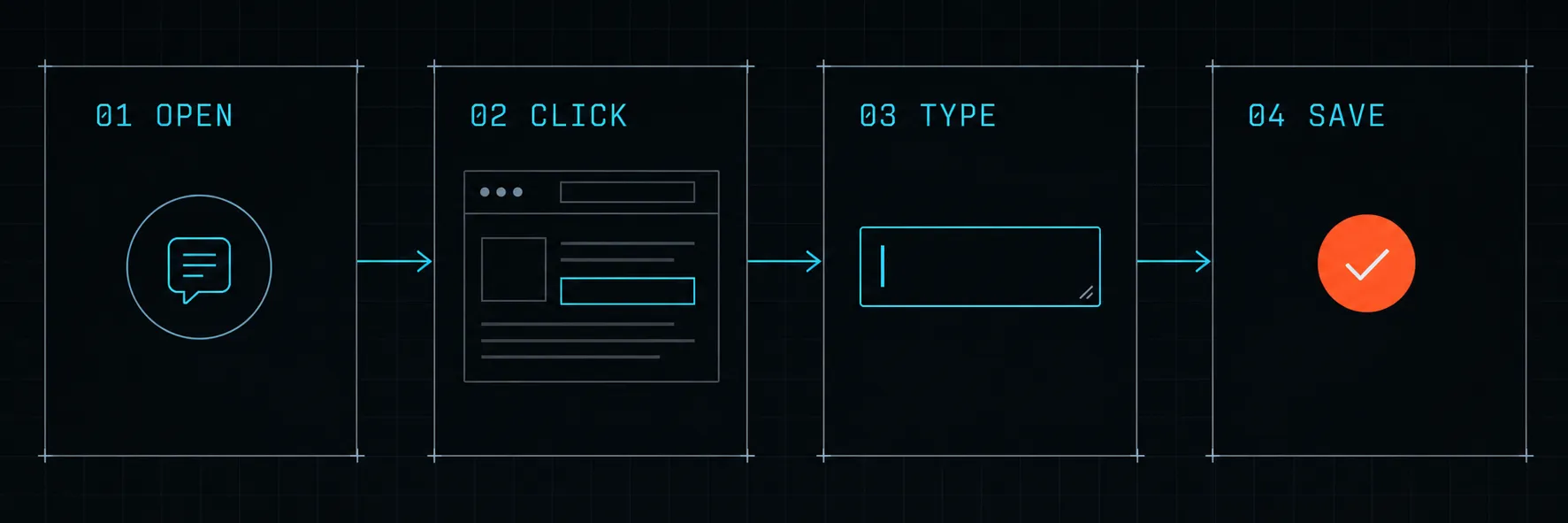
The 4 gestures
That's the entire workflow — four actions, in order:
Open widget → click element → type note → save. Each gesture maps to one screen.
Open the widget
Click the icon in the corner. The page enters "selection mode" — elements will highlight as the reviewer moves the mouse.
Click the element
Hover over any element — headings, paragraphs, images, buttons, nav links. It highlights in cyan. Click it. TellUs records the CSS selector, XPath, computed styles, bounding box, and visible text automatically.
Type the note
A small form appears with the element's text previewed. The reviewer fills in:
Comment — what should change and why.
Replacement text — the exact new copy, if applicable.
Change type — text change, style issue, layout, broken, content, or general comment.
Optional one-click screenshot (captures the viewport) or voice note (records audio, auto-transcribed). Both are lazy-loaded; they add no weight until used.
Save
Click Save. The note is submitted. A small orange dot appears on the element — the indicator that feedback is pinned there. The reviewer can continue leaving notes on this page or navigate to other pages. The widget follows.
Multiple notes and multi-page reviews
There's no limit on notes per session. Each note gets its own indicator dot. As the reviewer navigates between pages, the widget stays active (via the session cookie) and continues pinning notes to elements on each page they visit.
Ending a session
Nothing special is required — the session cookie expires after 24 hours. To deactivate immediately, the reviewer visits any page on the site with ?tellus=off appended. The widget icon disappears and no further notes can be submitted until a new activation link is opened.
Zero footprint for normal visitors
The widget script exists on the page but runs nothing for visitors who haven't opened an activation link. No network calls, no UI, no tracking — until ?tellus= is present.
04
Dashboard guide
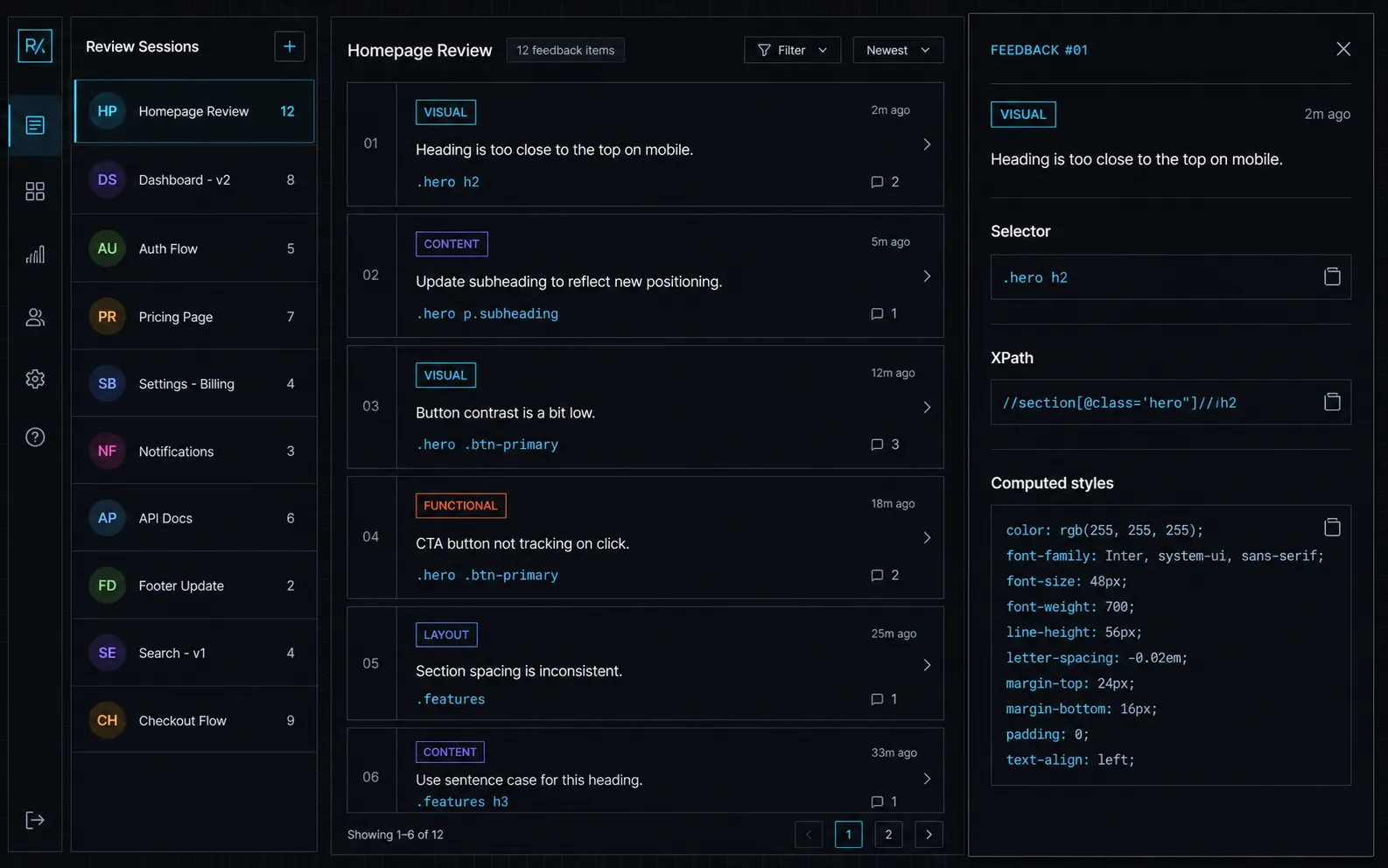
Sessions list (left) · note cards with type badges (right) · detail drawer with selector, XPath, and computed styles.
Site picker
The dropdown in the header switches between registered client sites. Each site's feedback is completely isolated — sessions, notes, and exports never cross site boundaries.
Sessions panel
The left sidebar lists all review sessions for the selected site. Each entry shows the reviewer's email, browser and OS, date, and note count. Click a session to filter the note view to just that reviewer's feedback. Click All sessions to return to the full list.
Note cards
Each note card in the main panel shows:
Field
What it means
type
Color-coded badge — Text change, Style, Layout, Broken, Content, or Comment
page
The URL path where the note was left
cssSelector
The shortest unique selector for the targeted element
Comment
The reviewer's written feedback
Replacement text
The exact new copy, if the reviewer provided it
Date
Submission timestamp
Status filter
Three tabs at the top of the notes panel control which notes are visible:
Open
Unresolved feedback. The default view — start here every time you open a project.
Resolved
Notes marked done. Useful to confirm what's been completed before a delivery call.
All
Every note regardless of status. Use for bulk export or auditing.
Detail drawer
Click View detail on any note card. A drawer opens with the full forensic payload:
Three independent element anchors: CSS selector, positional XPath, text-content XPath
Reviewer's viewport dimensions, browser, and OS
Computed CSS: font size, font family, color, background color, padding, border radius
Bounding box in viewport-percent coordinates
Screenshot (if captured) and voice note with auto-transcript (if recorded)
Developer comment field — add context before resolving
JSON export
Click Export JSON in the notes panel header to download all currently filtered notes as a structured JSON file. The export contains full Layer 2 detail — selectors, XPaths, computed styles, and session context — identical to what the report API returns. Hand this file directly to an AI coding agent as task input.
05
Resolving notes & the status flow
Every note moves through a simple lifecycle. Both the dashboard and the CLI support all transitions.
Status
Meaning
Next step
open
Freshly submitted. Needs attention.
Mark as told once you've acknowledged it, or resolved after fixing.
told
The reviewer has been informed of your plan or response. Fix is pending.
Mark resolved when the change is deployed.
resolved
Change implemented. Can include a developer comment (e.g. commit hash).
Mark archived to remove from active views, or reopen if the fix needs revisiting.
archived
Permanently closed. Hidden from active filters.
No further action expected.
Reopen is always available
Resolved notes can be reopened at any point — from the detail drawer or via the CLI --reopen flag. A resolved note is not permanent until archived.
Resolving from the dashboard
Open the detail drawer on any note. Optionally add a developer comment (commit hash, PR link, explanation). Click Mark resolved. The note moves out of the Open tab immediately.
Resolving via CLI
If you prefer to work from the terminal — or are scripting a batch resolve as part of a deploy hook — use the feedback.php CLI on the server:
SSH · feedback.php CLI
# Mark a note told (acknowledged, fix pending)
php api/cli/feedback.php a4efloral.com --told42# Mark resolved with a developer comment
php api/cli/feedback.php a4efloral.com --resolve42--comment"Fixed in commit abc123"# Reopen a resolved note
php api/cli/feedback.php a4efloral.com --reopen42
06
For developers & AI agents
TellUs is built with a single constraint: an AI coding agent must be able to read a note and act on it without asking clarifying questions. Every captured field is an agent input, not just a human-readable label.
The two-layer report model
Reports are split into two layers so an agent scans cheaply and drills only when needed.
Layer 1 — Summary scan
A lightweight list of all open notes. Each note is roughly 250 bytes.
GET · Layer 1 summary
GET /api/reports/{domain}/summary?status=open
Fields per note: idpagecssSelectorcurrentTextcommentreplacementTexttypedetailRef
An agent can read a batch of 50 notes from Layer 1 and implement most of them without touching Layer 2. Only when a selector is ambiguous does it fetch detail.
Layer 2 — Detail on demand
The full forensic payload for a single note, fetched by ID.
GET · Layer 2 detail
GET /api/reports/{domain}/detail/{noteId}
Three independent element anchors in the response: cssSelector (shortest unique, via @medv/finder — the primary target) · xpathPositional (structural fallback) · xpathText (text-content fallback). Plus computed styles, bounding box, screenshot URL, voice transcript, and full session context.
The CLI — agent and script interface
The feedback.php CLI runs server-side via SSH. Use it in CI scripts, deploy hooks, or when feeding output directly to an agent context window.
feedback.php · all verbs
# Sparse scan — human-readable summary of open notes
php api/cli/feedback.php a4efloral.com# Sparse scan in JSON — pipe directly into an agent
php api/cli/feedback.php a4efloral.com--json# Full detail for a single note (Layer 2 equivalent)
php api/cli/feedback.php a4efloral.com--detail42# Status transitions
php api/cli/feedback.php a4efloral.com--told42
php api/cli/feedback.php a4efloral.com--resolve42--comment"Fixed in #88"
php api/cli/feedback.php a4efloral.com--reopen42
php api/cli/feedback.php a4efloral.com--delete42
Handing feedback to an AI agent
Two paths — choose based on your workflow:
JSON export from the dashboard — Filter to Open notes, click Export JSON, attach the file to your agent's context. No API calls or server access needed.
CLI → agent pipe — Run --json over SSH and pipe or redirect the output. The agent reads structured notes, uses the cssSelector to locate each element in the codebase (search the compiled HTML, the template, or the component), applies the change, then calls --resolve with a commit reference.
The agent loop in practice
The CSS selector is the primary target — it's the shortest unique path to the element, generated by @medv/finder. Most notes also include replacementText (the exact new string). In the common case the agent does two things: find the selector in source, swap the text. No screenshot analysis, no inference — the data does the heavy lifting.
07
Troubleshooting
Widget doesn't appear after opening the activation link
Check first
Domain mismatch — The domain registered in the dashboard must match exactly. www.example.com and example.com are treated as different sites. Confirm the registered value in the dashboard header dropdown.
Script tag missing — View source on the page and search for tellus.min.js. If it's absent, the widget was never installed (or a caching plugin is serving a stale version of the page).
Activation link format — The ?tellus= parameter must be on the very first request to the page. Check that your link-shortener or email client isn't stripping query parameters.
Browser console — Open DevTools › Console and look for messages starting with TellUs:. They will name the specific failure.
Widget appears but notes don't save
CORS / domain mismatch
CORS error — Open the browser console (Network tab) immediately after clicking Save. If you see a CORS rejection, the posting domain doesn't match the registered domain. Fix: confirm the dashboard registration, clear the browser cache, and retry.
API health check — Visit tellus.alchemygraphics.com/api/health. You should see {"data":{"status":"ok"}}. Any other response means the API is unreachable from your network.
Note appears in the dashboard but detail won't load
Your admin session may have expired (30-day TTL). Log out of the dashboard, log back in, and try opening the detail drawer again.
Screenshots are blank or show a warning
Screenshot capture uses an in-browser canvas render. If the page loads images from external domains (CDNs, third-party hosts) without proper CORS headers, the browser will taint the canvas and the screenshot will be blank or partial. The note's text data, selectors, and computed styles are always captured normally regardless of screenshot outcome — the screenshot is supplementary.
Still stuck?
Reach out via the Alchemy Graphics contact page. Include the domain, browser, OS, and any console errors — those three pieces of information resolve 90% of issues without back-and-forth.